How to Schedule Instagram Reels for Free in 2026 (Step-by-Step)
You can schedule Instagram Reels for free — without bots, without a credit card, and without touching a notification to post manually. This guide shows you exactly how, which free tool to use, and the mistakes that kill Reel reach even when scheduled correctly.
Schedule Instagram Reels for Free
Step-by-step guide · June 2026 · InstaGrow
Quick answer
To schedule Instagram Reels for free: create a free account on InstaGrow → connect your Instagram via Meta OAuth → open Schedule Post → set Post Type to Reel → upload your video → pick a time (or use the AI recommendation) → click Schedule. InstaGrow publishes automatically at your chosen time via the official Instagram API. No credit card. No post limit.
Posting Instagram Reels manually every day at the right time is not sustainable. Instagram's own creator guidance consistently highlights Reels as the primary format for reaching new audiences — which means consistency isn't optional, it's the baseline. But maintaining that consistency manually breaks down fast.
The good news: you don't need to pay for it. You can schedule Instagram Reels for free using tools that connect to Instagram's official API. The ones that don't use the official API — browser bots, screen-tap automation — can get your account restricted. We're only covering the safe ones here.
Before you use any free Reels scheduler
Only use a scheduler that publishes via the official Instagram Graph API. Tools that log into Instagram as you via browser automation violate Instagram's Terms of Service and risk account restriction or permanent bans. Every tool mentioned in this guide uses the official API.
How to Schedule Instagram Reels for Free: The Full Guide
Using InstaGrow — the only free tool that combines Reels scheduling with AI timing, comment moderation, and a Trial Reel feature. Free plan, no credit card.
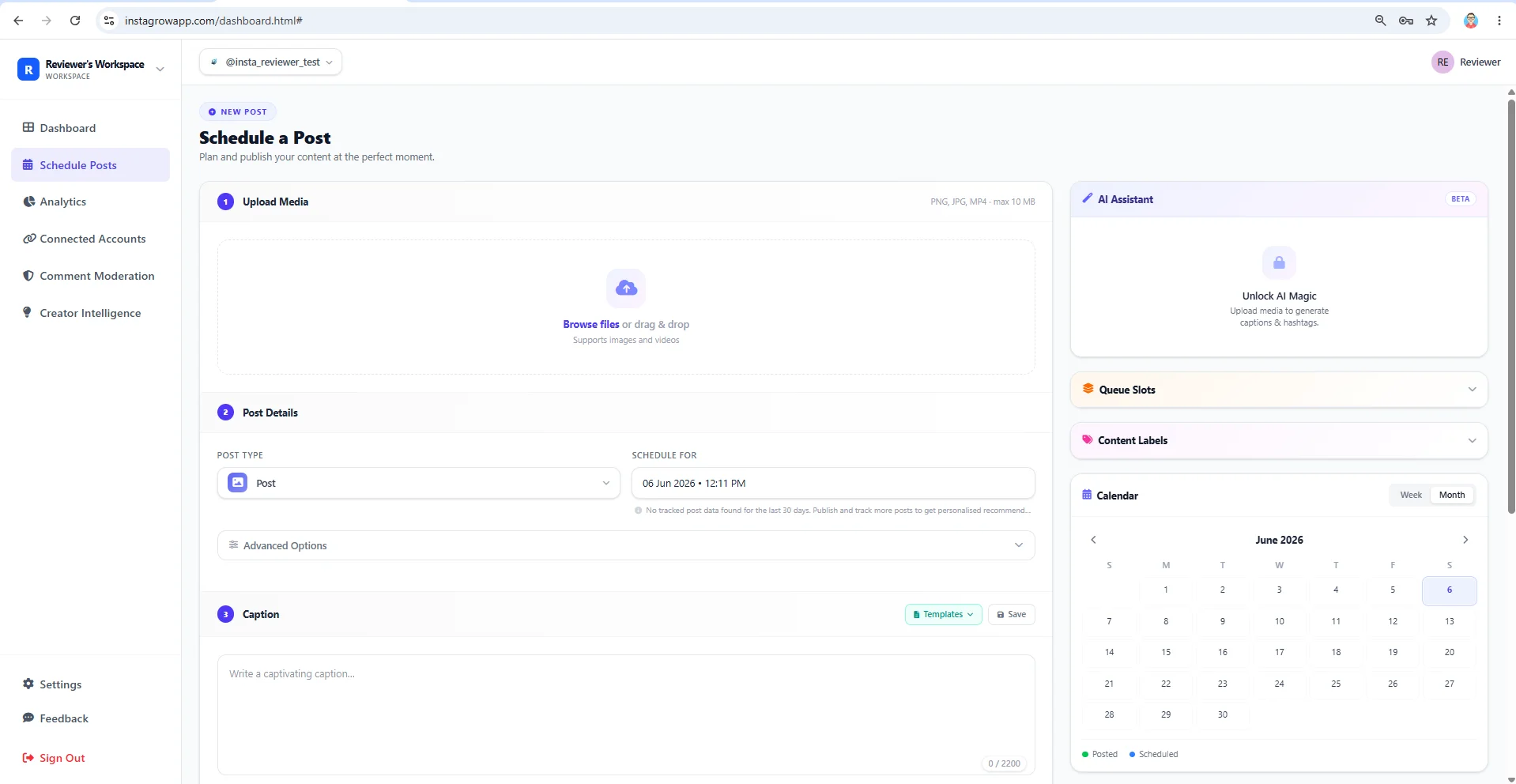
Create a free InstaGrow account
Go to instagrowapp.com and sign up. The free plan includes full Reels scheduling with no post cap and no credit card required. It takes under a minute.
Connect your Instagram account via Meta OAuth
InstaGrow uses Meta's official OAuth flow — the same secure login method used by Meta Business Suite. You authorize InstaGrow through Instagram's own login screen. Your Instagram password is never shared with or stored by InstaGrow.
Click "Schedule Post" in the sidebar
From your InstaGrow dashboard, click Schedule in the left sidebar. This opens the Schedule Post editor — your central hub for creating and queuing Reels, feed posts, and Stories.
Set Post Type → Reel
Use the Post Type dropdown and select Reel. InstaGrow automatically switches to the official Reels publishing endpoint. You'll also see an option to cross-post the Reel to your Stories at the same time — one upload, two placements.
Upload your video
Drag and drop your MP4 into the upload zone. InstaGrow validates your file before scheduling — if the ratio, length, or codec is wrong, you'll know now, not at 11pm when it's supposed to go live.
Required Reels format specs (Instagram API requirements):
| Spec | Required Value | Notes |
|---|---|---|
| Container | MP4 or MOV | MP4 recommended |
| Video codec | H.264 | H.265 not supported |
| Audio codec | AAC | 128kbps+, stereo |
| Aspect ratio | 9:16 (vertical) | 1080×1920px recommended |
| Frame rate | 23–60 fps | 24fps or 30fps standard |
| Max duration | 90 seconds | Min 3 seconds |
| Max file size | 100 MB | Compress if larger |
| Min resolution | 720×1280px | 1080×1920 recommended |
| Video bitrate | 3,500–5,000 kbps | For 1080p at 30fps |
Use the AI timing recommendation InstaGrow exclusive
The right sidebar shows your audience's peak activity windows — calculated from your actual historical post data, not a generic list. Click the recommended time to auto-fill your schedule.
New account? AI timing recommendations activate after InstaGrow has analysed a few weeks of your posting data. Until then, pick your time manually — or check our 2026 best time to post guide for a solid starting point based on your niche.
Write your caption and hashtags
Type your caption or use the AI Generate button to auto-create one. Add hashtags in the caption body. You can also upload a custom cover thumbnail here — important for how your Reel appears in your profile grid.
Click "Schedule Post" — or use Trial Reel InstaGrow exclusive
Two options:
- Schedule Post — publishes to all your followers at the exact time you set, via the official Instagram API. No action needed on your end at posting time.
- Trial Reel — publishes to a small test audience first. If engagement is strong, you promote it to everyone. If it underperforms, you drop it quietly — no damage to your average engagement rate. No other free tool has this.
Steps verified June 2026. Reflects the current InstaGrow dashboard interface.
How to Schedule Reels Without Any Third-Party Tool
If you don't want to sign up for any external service, Instagram's own Meta Business Suite lets you schedule Reels directly — completely free, no account needed beyond your Instagram login.
Go to business.facebook.com and log in with the Facebook account connected to your Instagram.
In the left sidebar, click Planner (or Content → Posts & Stories depending on your version).
Click Create Post → select Instagram → choose Reel as the post type.
Upload your vertical MP4 video, write your caption, and add a cover thumbnail if needed.
Click the dropdown next to the Publish button → select Schedule Post → pick your date and time → confirm. Meta Business Suite publishes your Reel automatically at the set time.
Schedule Reels in the Instagram App (Android & iOS)
You can also schedule Reels natively inside the Instagram mobile app — free, on both Android and iOS — if you have a professional (Creator or Business) account. Open the app, tap + → Reel, upload your video and caption, then tap Advanced settings → toggle Schedule this reel and pick a date and time (up to 75 days ahead, with a limit of 25 scheduled posts). Tap Schedule to confirm.
It's handy for the occasional Reel, but there's no AI timing, no bulk queue, and no analytics — so for a consistent posting cadence a dedicated free Instagram scheduler is far less manual.
Why Not Just Post Reels Manually in the Instagram App?
Manual posting works — but it breaks down fast when you're posting 3–5 Reels per week consistently:
- You have to post at the right time, every time. If your audience peaks at 7pm on weekdays but you're in a meeting, you miss the window. A scheduler posts automatically while you're doing other things.
- You can't batch create and batch post. Manually posting means opening the app each time, uploading, writing a caption, adding hashtags — for every single Reel. A scheduler lets you do this once a week for all your Reels in one session.
- You lose the AI timing advantage. InstaGrow's AI analyzes your audience activity data and recommends the specific time slots where your Reels get the most early engagement. Manual posting means guessing.
- Comments go unmoderated. Spam floods Reel comments immediately after posting. InstaGrow's comment moderation filters this automatically — unmanaged spam comments hurt engagement quality signals.
Other Free Ways to Schedule Instagram Reels
InstaGrow is the best free option, but here are the alternatives if you have specific requirements:
Meta Business Suite
100% FreeInstagram's own scheduling tool. Completely free, unlimited Reels, no third-party account needed. Go to business.facebook.com → Content → Schedule. The downside: no AI timing, no comment moderation, and a clunky interface. But if you want zero setup and zero third-party data sharing, this is a solid fallback.
Best for: Beginners who want basic Reels scheduling with no external tools.
Later (Free Plan)
30 posts/month capLater has a beautiful visual calendar and supports Reels scheduling. The free plan caps you at 30 posts per month across all content types. If you're posting 4 Reels per week, that's 16 Reels using 53% of your monthly cap — before Stories or feed posts. Fine for light users, limiting for serious Reels strategies.
Best for: Creators who plan visually and post fewer than 30 times per month total.
Buffer (Free Plan)
10 posts in queueBuffer supports Reels via the official API and covers 3 social channels on the free plan. The 10-post queue limit means you can never have more than 10 Reels scheduled at once — not a monthly cap, but a live queue cap. If you post 3 Reels per week, your queue fills up in 3 weeks with no room to add more until older ones publish.
Best for: Creators cross-posting Reels to Instagram, Twitter/X, and LinkedIn from one tool.
Free Reels Scheduler Comparison (2026)
| Tool | Reels | AI Timing | Post Limit | Trial Reel |
|---|---|---|---|---|
| InstaGrow | ✓ | ✓ | Unlimited | ✓ |
| Meta Business Suite | ✓ | ✗ | Unlimited | ✗ |
| Later | ✓ | ✗ | 30/month | ✗ |
| Buffer | ✓ | ✗ | 10 in queue | ✗ |
4 Mistakes That Kill Reel Reach Even When Scheduled Correctly
Scheduling at the wrong time
Generic "best times" lists are averages across millions of accounts — not your audience. Your followers might peak at 10pm on Sundays. InstaGrow's AI timing reads your specific account data. Use it instead of a generic guide.
Uploading non-vertical video
Reels are full-screen vertical (9:16). Horizontal or square video gets letterboxed and looks broken in the Reels feed. InstaGrow validates your file format before scheduling. Meta Business Suite does not always warn you.
Weak hook in the first 2 seconds
The algorithm distributes Reels based on early watch time. If viewers swipe away immediately, reach collapses fast. Use InstaGrow's Trial Reel to test hooks on a small audience before committing to full distribution.
Ignoring comments after posting
Comments in the first 30–60 minutes are a strong engagement signal for the algorithm. Spam comments dilute this. InstaGrow's comment moderation filters spam automatically — so your comment section stays clean and meaningful engagement stands out.
Troubleshooting: When Your Scheduled Reel Doesn't Post
These are the most common reasons a scheduled Reel fails — and how to fix each one.
❌ "Video format not supported" error on upload
Cause: Your file isn't in the correct format for the Instagram Reels API.
Fix: Re-export as MP4 with H.264 video codec and AAC audio. Frame rate must be 23–60 fps. Aspect ratio must be 9:16 (vertical). If you're exporting from CapCut, Premiere, or DaVinci Resolve — use the "Instagram Reels" preset or manually set these values.
❌ Reel was scheduled but never posted
Cause: Your Instagram account lost its API connection, usually because you changed your Instagram password or revoked app access.
Fix: Go to your InstaGrow account settings → reconnect Instagram via Meta OAuth. Then reschedule the Reel. InstaGrow will notify you if a post fails — check your notification settings are on.
❌ "Account not eligible" when connecting Instagram
Cause: Instagram's scheduling API only works with Professional accounts (Creator or Business). Personal accounts cannot use third-party schedulers — including InstaGrow and Meta Business Suite.
Fix: In the Instagram app → Settings → Account → Switch to Professional Account. Choose Creator or Business. This takes 30 seconds and is reversible.
❌ Reel posted but with no audio
Cause: The video was exported with an audio codec Instagram doesn't accept, or the audio track was on a separate layer that wasn't merged on export.
Fix: Re-export with AAC audio codec, stereo, 128kbps or higher. Make sure audio is baked into the video file — not a separate track. Check the export in VLC or QuickTime before uploading.
❌ File size too large to upload
Cause: Instagram's API enforces a 100MB file size limit for Reels uploads via third-party tools.
Fix: Compress the video before uploading. In HandBrake, use the "Instagram" preset or target a bitrate of 3,500–5,000 kbps for 1080p. A 60-second Reel at 1080p should be well under 100MB at this bitrate.
Frequently Asked Questions
Can you schedule Instagram Reels for free?
Yes. You can schedule Instagram Reels for free using InstaGrow, Meta Business Suite, Later (free plan), or Buffer (free plan). InstaGrow is the strongest free option — it has no post cap, includes AI timing, and uses the official Meta API. No credit card required.
How do I schedule Instagram Reels for free?
The fastest way: create a free InstaGrow account at instagrowapp.com → connect Instagram via Meta OAuth → open Schedule Post → set Post Type to Reel → upload your vertical MP4 → pick a time using AI recommendations → write your caption → click Schedule Post. InstaGrow publishes it automatically at the set time via the official Instagram API.
Does scheduling Instagram Reels affect reach or views?
No. Using the official Instagram Graph API to schedule Reels does not affect reach or views. Instagram treats them exactly the same as manually posted Reels. Only tools using unofficial bots or browser automation can hurt performance — always verify your scheduler uses the official Meta API.
What is the best free tool to schedule Instagram Reels?
InstaGrow is the best free tool to schedule Instagram Reels in 2026. It uses the official Meta API, has no post cap, includes AI best-time recommendations, a Trial Reel feature for testing before full publish, and comment moderation — all on the free plan.
What is the Trial Reel feature on InstaGrow?
Trial Reel lets you publish a Reel to a small test audience before deciding to share it with all your followers. If early engagement is strong, you promote it to everyone. If it underperforms, you drop it without hurting your account's average engagement rate. No other free scheduler offers this.
How many Reels should I post per week on Instagram?
Instagram recommends 3–5 Reels per week for consistent growth in 2026. Consistency matters more than volume — 3 great Reels scheduled at peak times will outperform 10 random ones. Batch-schedule all your Reels for the week in one InstaGrow session and let the tool handle posting automatically.
Is it safe to use a free Instagram Reels scheduler?
Yes — if the scheduler uses the official Instagram Graph API. InstaGrow, Meta Business Suite, Later, and Buffer all use the official API and are 100% safe. Avoid any scheduler that logs into Instagram as you via browser automation or screen-tapping — these violate Instagram's Terms of Service and can get your account banned.
Content Strategist at InstaGrow
Yamini is a content strategist at InstaGrow covering Instagram scheduling, Reels strategy, and growth automation. She tests features hands-on and translates InstaGrow's platform data into practical guides for creators, influencers, and small business owners.
Related Articles
- How to Schedule Instagram Stories for Free in 2026 — Same guide for Stories — format specs, timing, and free tools
- Best Free Instagram Schedulers 2026: Every Tool Tested — Beyond Reels — the full free scheduler comparison
- Best Time to Post on Instagram in 2026 — Data-backed timing for Reels, Stories, and feed posts
- How to Grow Instagram Followers Organically in 2026 — Reels strategy inside the full organic growth picture
- How to Automate Instagram Comments in 2026 — Pair comment automation with your Reels scheduling
- InstaGrow Review 2026: Does It Actually Work? — Full deep-dive on every InstaGrow feature